实现效果
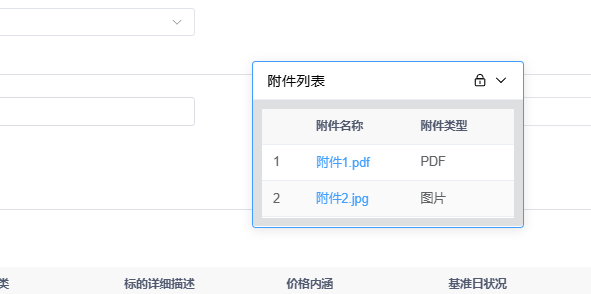
可拖拽弹窗默认样式
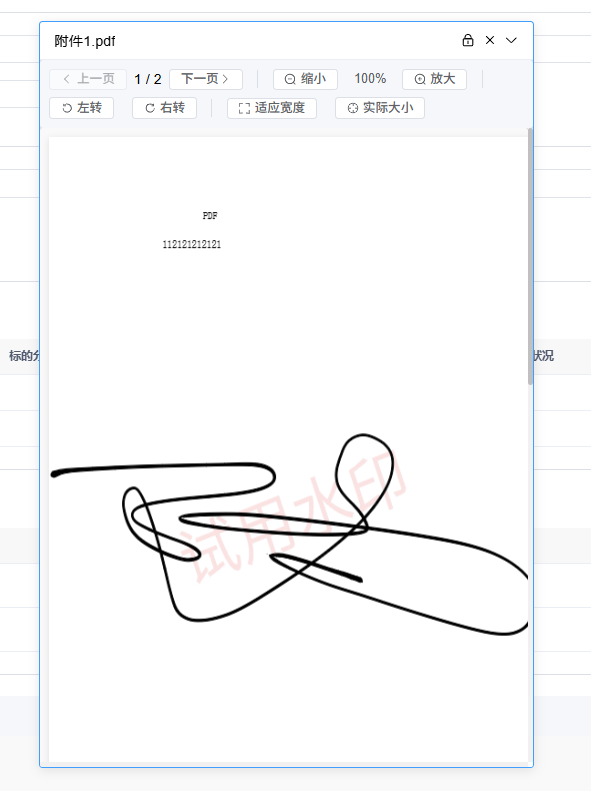
可拖拽弹窗内嵌PDF预览组件
简单示例
<!-- 可拖拽悬浮窗 -->
    <DraggableFloatingTable title="附件列表" maxWidth="550px" :tableData="caseData.attachment" @rowClick="handleRowClick">
      <template #iconBtns>
        <el-icon @click.stop="" style="cursor: pointer;">
            <Lock :size="16"/>
          </el-icon>
      </template>
      <template #content="{ showBack }">
        <PdfViewer ref="Draggable" v-if="showBack" key="1" :pdfUrl="caseData.pdfUrl" style="max-width: 550px;overflow: auto;" maxHeight="710px"/>
      </template>
    </DraggableFloatingTable>
实现代码
<template>
  <div
    class="floating-table"
    :style="{
      maxWidth,
      left: `${position.x}px`,
      top: `${position.y}px`,
      zIndex: 3000
    }"
    @mousedown="startDrag"
    @touchstart="startDrag"
    @mousemove="onDrag"
    @touchmove="onDrag"
    @mouseup="stopDrag"
    @mouseleave="stopDrag"
    @touchend="stopDrag"
    @touchcancel="stopDrag"
  >
    <!-- 标题栏 -->
    <div class="table-header">
      <slot name="header">
        <span>{{ title }}</span>
        <el-space fill-ratio="70">
          <slot name="iconBtns"></slot>
          <el-icon @click.stop="isLocked = !isLocked" style="cursor: pointer;">
            <Lock v-if="!isLocked" :size="16"/>
            <Unlock v-else :size="16"/>
          </el-icon>
          <el-icon v-if="isShowBack && expanded" @click.stop="isShowBack = false,title = initTitle" style="cursor: pointer;">
            <Close  :size="16"/>
          </el-icon>
          <el-icon @click.stop="toggleTable" style="cursor: pointer;">
            <ArrowDown :size="16" v-if="expanded" />
            <ArrowRight :size="16" v-else />
          </el-icon>
        </el-space>
      </slot>
    </div>

    <!-- 表格内容 -->
    <div class="table-content" v-show="expanded" :style="{ padding: isShowBack ? '0' : '10px', maxWidth }">
      <slot name="content" :showBack="isShowBack">
        <el-table
          :data="tableData"
          stripe
          max-height="300px"
        >
          <el-table-column type="index" />
          <el-table-column prop="a" label="附件名称">
              <template #default="scope">
                  <el-link type="primary" href="javascript:;" @click="handleRowClick(scope.row)">{{ scope.row.a }}</el-link>
              </template>
          </el-table-column>
          <el-table-column prop="b" label="附件类型"></el-table-column>
        </el-table>
      </slot>
    </div>
  </div>
</template>

<script setup>
import { ref, onMounted, onUnmounted, nextTick } from 'vue'

const props = defineProps({
  tableData: {
    type: Array,
    default: () => []
  },
  title: {
    type: String,
    default: '标题'
  },
  position: {
    type: Object,
    default: () => ({
      x: 10,
      y: 100
    })
  },
  maxWidth: {
    type: String,
    default: '550px'
  },
  isLocked: {
    type: Boolean,
    default: false  // 默认可以拖动
  }
})

const emits = defineEmits(['rowClick'])

let initTitle = props.title
const title = ref(props.title)
const isLocked = ref(props.isLocked)
// 表格行点击事件
const handleRowClick = (row) => {
  isShowBack.value = true
  title.value = row.a
  emits('rowClick', row)
}

// ====================================        页面拖拽逻辑     ============================================//
// 拖拽状态
const isDragging = ref(false)
const startX = ref(0)
const startY = ref(0)
const position = ref(props.position)
const expanded = ref(true)
const isShowBack = ref(false)

// 存储键名
const STORAGE_KEY = 'floatingTablePosition'

// 初始化位置
onMounted(() => {
  const savedPosition = localStorage.getItem(STORAGE_KEY)
  if (savedPosition) {
    try {
      position.value = JSON.parse(savedPosition)
    } catch (e) {
      console.error('Failed to parse saved position:', e)
    }
  }

  // 监听窗口大小变化,调整位置
  window.addEventListener('resize', adjustPosition)
})

onUnmounted(() => {
  window.removeEventListener('resize', adjustPosition)
})

// 调整位置防止超出可视区域
const adjustPosition = () => {
  const { x, y } = position.value
  const width = document.querySelector('.floating-table')?.offsetWidth || 500
  const height = document.querySelector('.floating-table')?.offsetHeight || 700

  const maxX = window.innerWidth - width
  const maxY = window.innerHeight - height

  position.value = {
    x: Math.max(0, Math.min(x, maxX)),
    y: Math.max(0, Math.min(y, maxY))
  }

  savePosition()
}

// 保存位置到localStorage
const savePosition = () => {
  localStorage.setItem(STORAGE_KEY, JSON.stringify(position.value))
}

// 开始拖拽
const startDrag = (e) => {
  if(isLocked.value) return
  // 只允许从标题栏拖拽
  if (!e.target.closest('.table-header')) return

  e.preventDefault()

  isDragging.value = true

  // 处理鼠标和触摸事件
  const event = e.type.includes('mouse') ? e : e.touches[0]

  startX.value = event.clientX - position.value.x
  startY.value = event.clientY - position.value.y

  // 添加拖拽样式
  document.body.classList.add('dragging-element')
}

// 拖拽中
const onDrag = (e) => {
  if (!isDragging.value) return

  e.preventDefault()

  // 处理鼠标和触摸事件
  const event = e.type.includes('mouse') ? e : e.touches[0]

  // 计算新位置
  let newX = event.clientX - startX.value
  let newY = event.clientY - startY.value

  // 边界检查
  const width = document.querySelector('.floating-table').offsetWidth
  const height = document.querySelector('.floating-table').offsetHeight

  newX = Math.max(0, Math.min(newX, window.innerWidth - width))
  newY = Math.max(0, Math.min(newY, window.innerHeight - height))

  position.value = { x: newX, y: newY }
}

// 结束拖拽
const stopDrag = () => {
  if (isDragging.value) {
    isDragging.value = false
    document.body.classList.remove('dragging-element')
    savePosition()
  }
}

// 折叠/展开表格
const toggleTable = () => {
  expanded.value = !expanded.value
  nextTick(() => {
    adjustPosition()
  })
}
</script>

<style scoped>
.floating-table {
  position: fixed;
  min-width: 300px;
  background-color: white;
  border-radius: 4px;
  box-shadow: 0 2px 12px 0 rgba(0, 0, 0, 0.1);
  border: 1px solid var(--el-color-primary);
  overflow: hidden;
  transition: width 0.3s, height 0.3s;
  user-select: none;
}

.table-header {
  display: flex;
  justify-content: space-between;
  align-items: center;
  padding: 10px 16px;
  /* background: var(--el-color-primary); */
  border-bottom: 1px solid #ebeef5;
}
.table-header > span{
  max-width: 50%;
  white-space: nowrap;
  text-overflow: ellipsis;
  overflow: hidden;
}
.table-header:hover{
  cursor: move;
}

.table-content {
  min-width: 300px;
  max-height: 800px;
  overflow: auto;
  background: rgb(221.7, 222.6, 224.4);
  cursor: pointer;
}

/* 拖拽时样式 */
.dragging-element {
  cursor: grabbing;
  user-select: none;
}
</style>
本文链接:https://blog.smallhao.fun/?id=33 转载需授权!


暂无评论
发表评论